 UsettaHelp Center
Connect WhatsApp
Connect your number
-
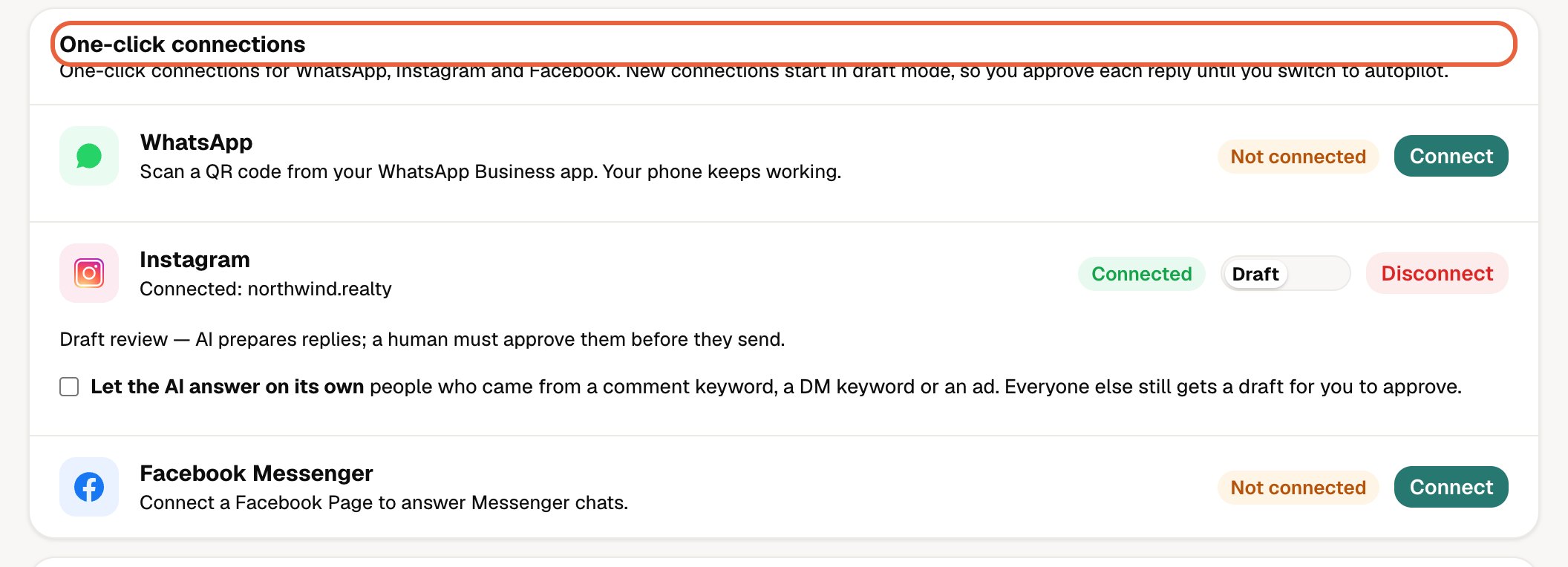
Open Channels in the left menu and find One-click connections.
-
Next to WhatsApp, press Connect.

-
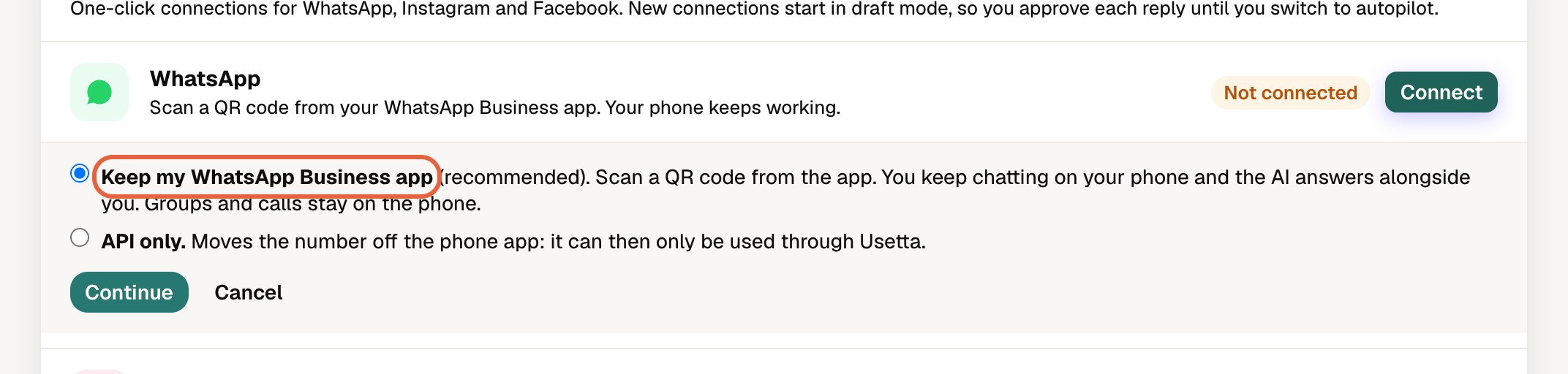
Choose how to connect, then press Continue:
- Keep my WhatsApp Business app (recommended). You scan a QR code from the app. You keep chatting on your phone and the AI answers alongside you. Groups and calls stay on the phone.
- API only. This moves the number off the phone app, so it can only be used through Usetta.
-
Follow the steps in the window that opens, then return to Usetta. The channel shows Connected.
New connections start in approval mode
Every one-click connection starts in approval mode, so you approve each reply until you decide to switch to autopilot. See Autopilot or approval mode?.
Good to know: Usetta never answers WhatsApp groups. Only one-to-one chats are answered.
Did this answer your question?
Thanks for telling us. If something is missing, email hello@usetta.com.