 UsettaHelp Center
Autopilot or approval mode?
Each channel has its own mode. Switch it on the Channels page: on a one-click channel, the Draft / Autopilot switch sits next to Connected.

| Autopilot | Approval mode | |
|---|---|---|
| Who sends the reply? | The AI, straight away | You, after reading the draft |
| Speed for the customer | Instant | As fast as you approve |
| Best for | Website chat, common questions, after-hours | New channels, sensitive businesses, learning how the AI answers |
Approving drafts
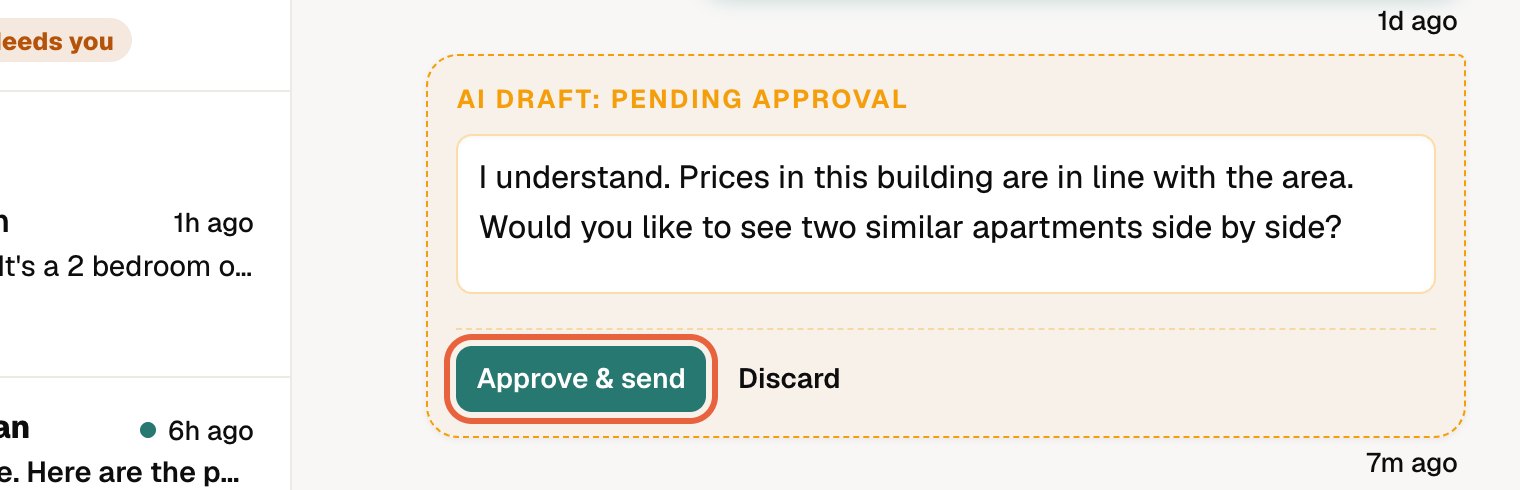
In approval mode, drafts wait in the Unibox (the dashboard shows Drafts to approve). Open the chat, read the draft, change it if you like, and press Approve & send. You can also press Discard and write your own.
Let the AI answer people who came from your posts and ads
On your one-click channels (WhatsApp, Instagram and Messenger) you can keep approval mode and let the AI reply on its own to the right people. Tick Let the AI answer on its own under the channel. It then replies automatically to anyone who came from:
- a comment keyword automation,
- a DM keyword automation, or
- a Meta ad.

Everyone else, such as friends or people who simply wrote in, still gets a draft for you to approve.
Two things always override the mode
- A chat that has been handed to a person stays in approval mode until you resolve it.
- A person you have switched the AI off for, or have replied to yourself in the last day, gets no AI reply at all. See Taking over a chat.
Did this answer your question?
Thanks for telling us. If something is missing, email hello@usetta.com.