 UsettaHelp Center
Using the Unibox
The Unibox shows all your conversations together: WhatsApp, Instagram, Messenger and website chat.
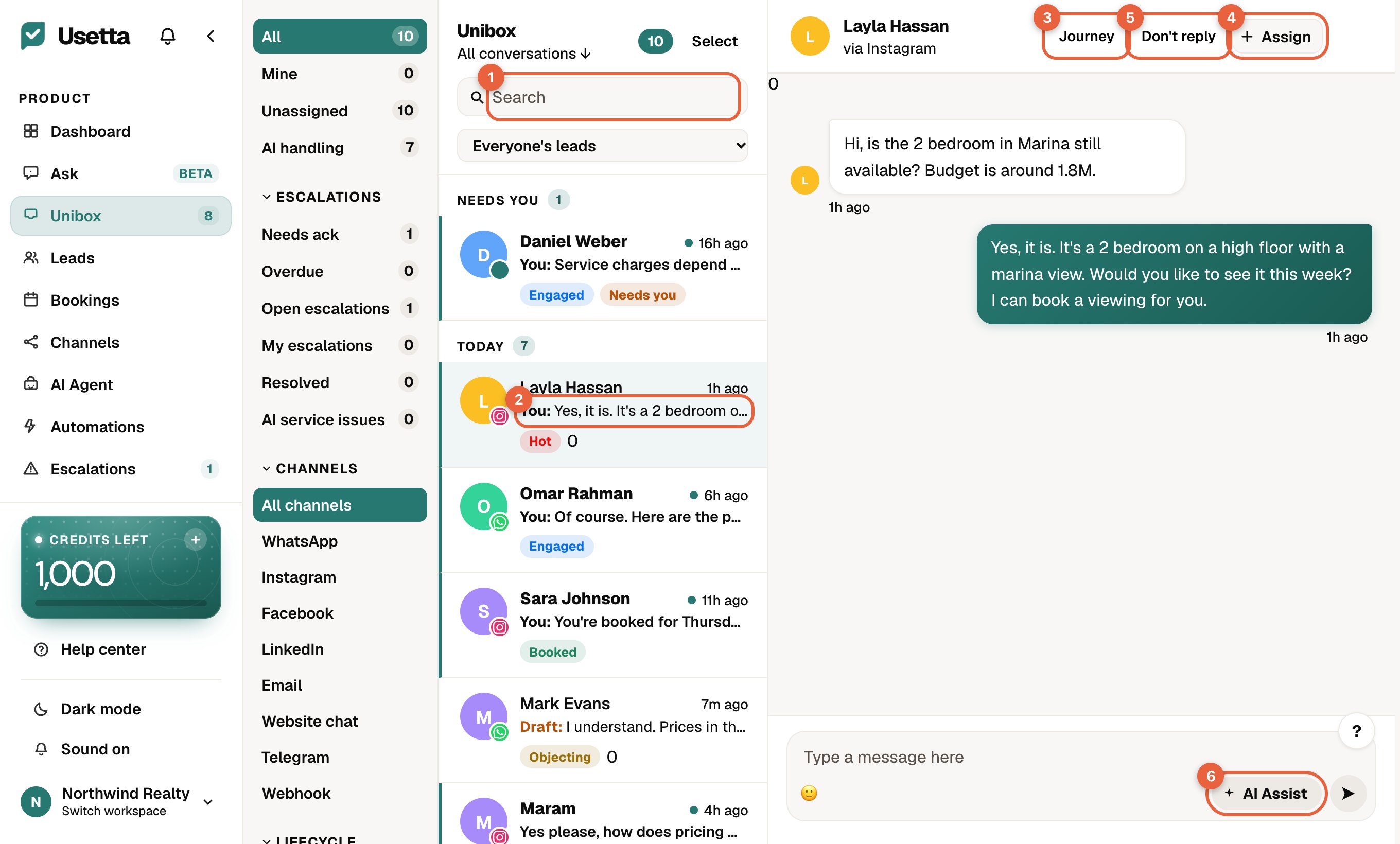
- Search for a person or a word.
- The conversation list. The coloured chip under each name is the lead’s stage.
- Journey shows everything that happened with this person.
- Assign gives the chat to a team member.
- Don’t reply stops the AI replying to this person.
- AI Assist rewrites what you typed to sound clearer or friendlier.
Finding chats
- The left column filters by Mine, Unassigned, AI handling, Escalations, Channels and lead stages.
- Use Search to find a person or a word.
- The coloured chip under each name is the lead’s stage, for example Hot or Booked.
In a chat
- Messages from the customer are on the left; replies on the right.
- Replies written by the AI are marked as AI.
- Journey is covered in The lead journey, and Don’t reply in Taking over a chat.
Drafts
In approval mode, a draft waits at the bottom of the chat. Read it, edit it if you like, and press Approve.
Did this answer your question?
Thanks for telling us. If something is missing, email hello@usetta.com.